MTS Hijyen

B2B shopping platform for corporate cleaning and hygiene solutions.

Categories

  • Paper Products
  • Cleaning Chemicals
  • Kitchen, Dishwashing & Food Service
  • Dispensers
  • Cleaning Equipment
  • Personal Care & Protective Equipment
  • Waste Management & Ambient Care

Brands

  • Wanda Soft
  • Efor
  • Selpak
  • Belinno
  • Beybi
  • Bingo
  • Ceymop

Company

  • About Us
  • Product Groups
  • Bundles
  • Deals
  • Blog
  • Contact

Help

  • Help Center
  • Portal Guide
  • Request a Quote
  • Request Sample
  • Returns

Legal

  • Privacy Notice
  • Privacy Policy
  • Cookie Policy
  • Distance Sales Agreement
© 2026 MTS Hijyen. All rights reserved.
+90 (543) 683 5765·Corporate lineNationwide deliveryMon-Fri 08:00-18:00
BundlesDeals|HelpAbout Us|Request a quote
MTS Hijyen
Sign InSign Up
Loading...
Choose a chapter:1. Setting up your account
  1. 1Setting up your account
  2. 2Finding products
  3. 3Placing an order
  4. 4Recurring orders
  5. 5Quotes and samples
  6. 6Approvals and budget
  7. 7Payment and finance
  8. 8After the order
  9. 9Team management
  10. 10Benefits
  11. 11Dealer managementFor dealers
  1. 1Setting up your account
  2. 2Finding products
  3. 3Placing an order
  4. 4Recurring orders
  5. 5Quotes and samples
  6. 6Approvals and budget
  7. 7Payment and finance
  8. 8After the order
  9. 9Team management
  10. 10Benefits
  11. 11Dealer managementFor dealers
Chapter 1 / 11
HomeGuideSetting up your account

Setting up your account

Sign up, complete your company details and get your account ready to use.

What it is for: Makes sure your account is set up correctly before your first order.

Steps

Corporate sign-up form
  1. 1

    Fill in the corporate sign-up form

    Enter your company name, tax number, contact name, phone, e-mail and password. Accept the KVKK Privacy Notice and click Complete Sign-Up.
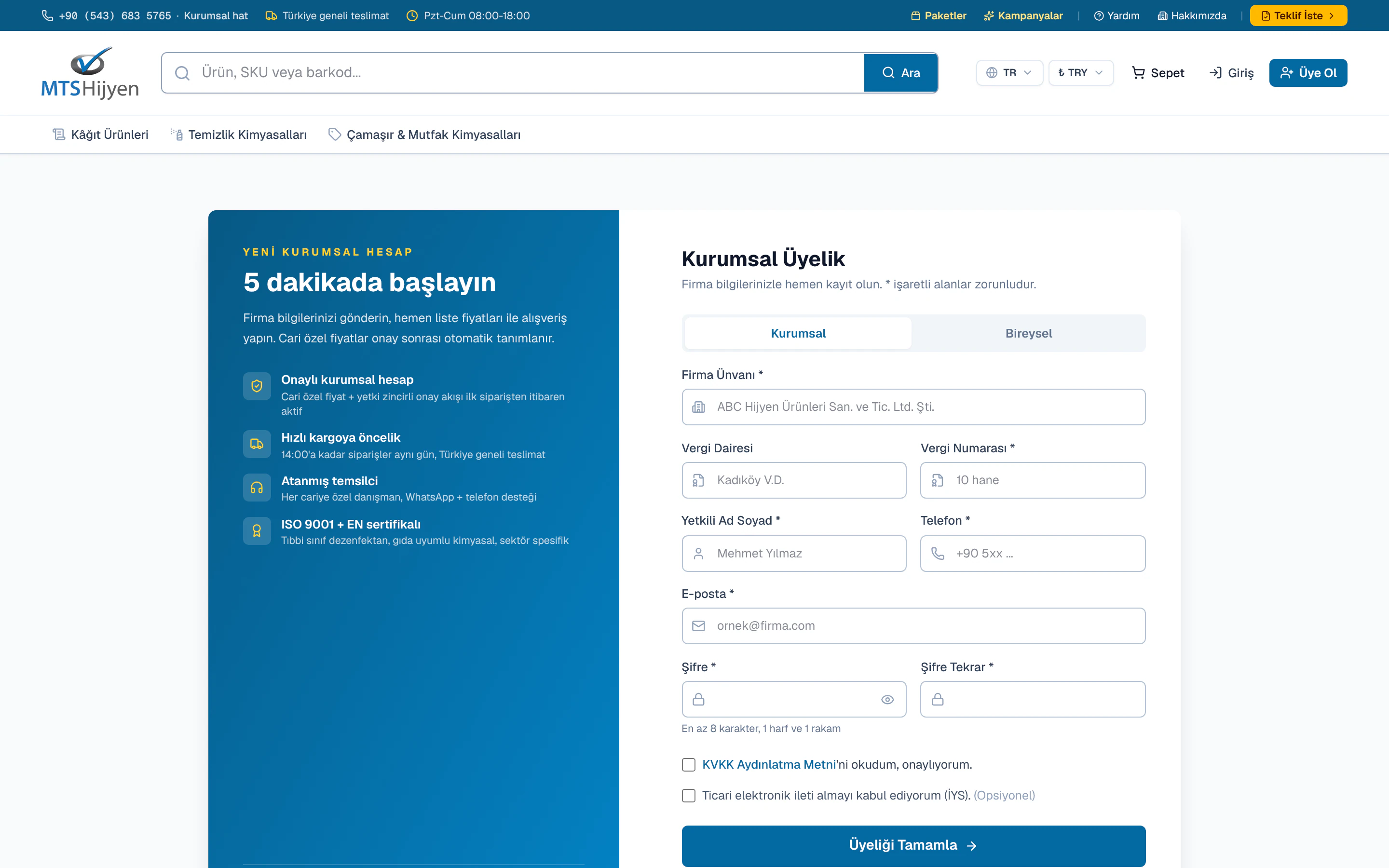
    Screenshot of the corporate sign-up form
  2. 2

    Sign in and complete your company details

    Enter your e-mail and password and click Sign In. If your company details are incomplete, the Complete Your Company Details page opens. Fill it in and click Save and Continue.

Account overview page
  1. 3

    Check your account overview

    After signing in, the Overview page opens. You see your spending, account status and orders awaiting approval at a glance. The Take the tour button walks you through the menu.
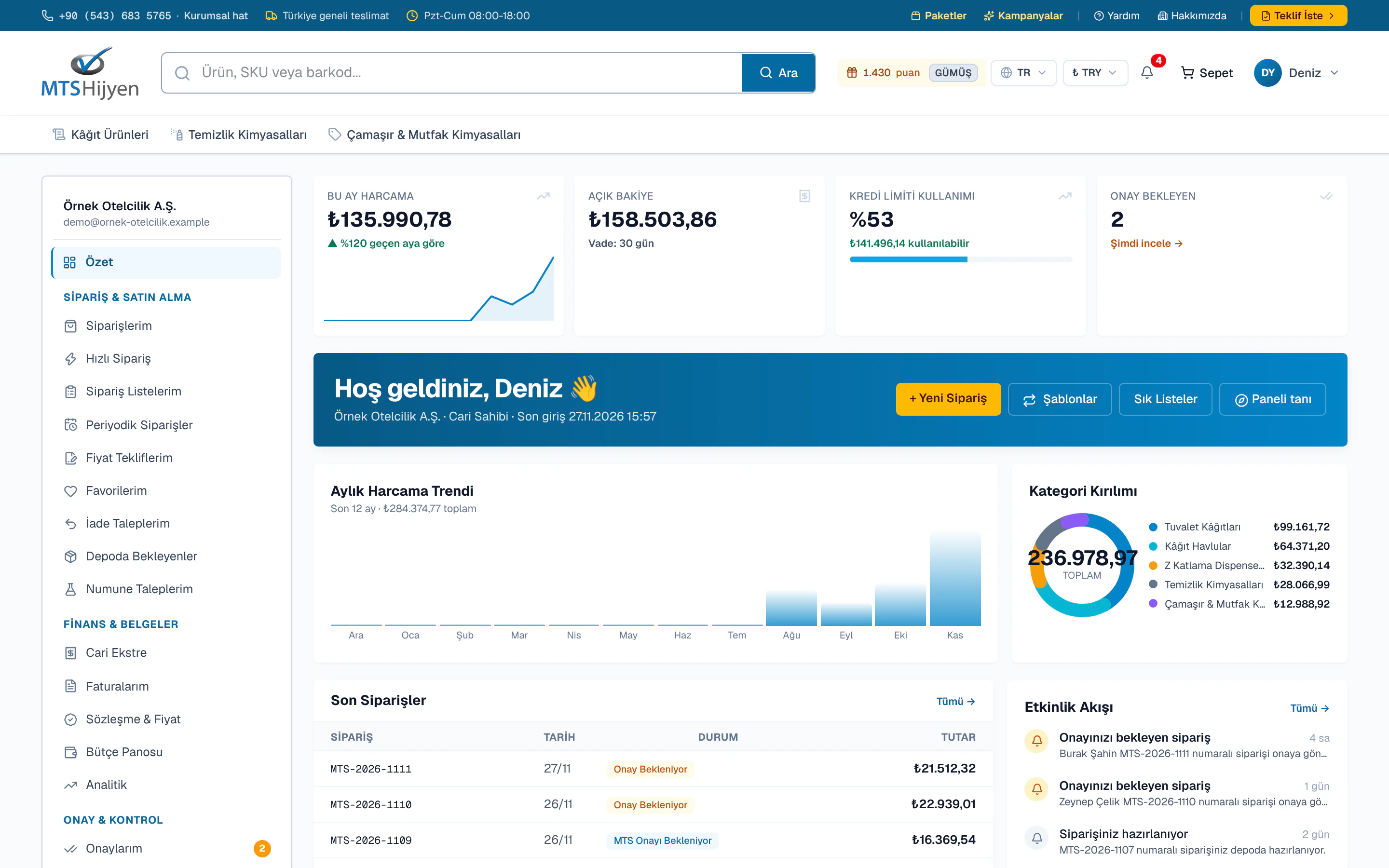
    Screenshot of the account overview page
Address book page
  1. 4

    Add your delivery address

    Fill in the form on the Address Book page and click Add Address. One default is selected for each address type and is applied automatically at checkout.
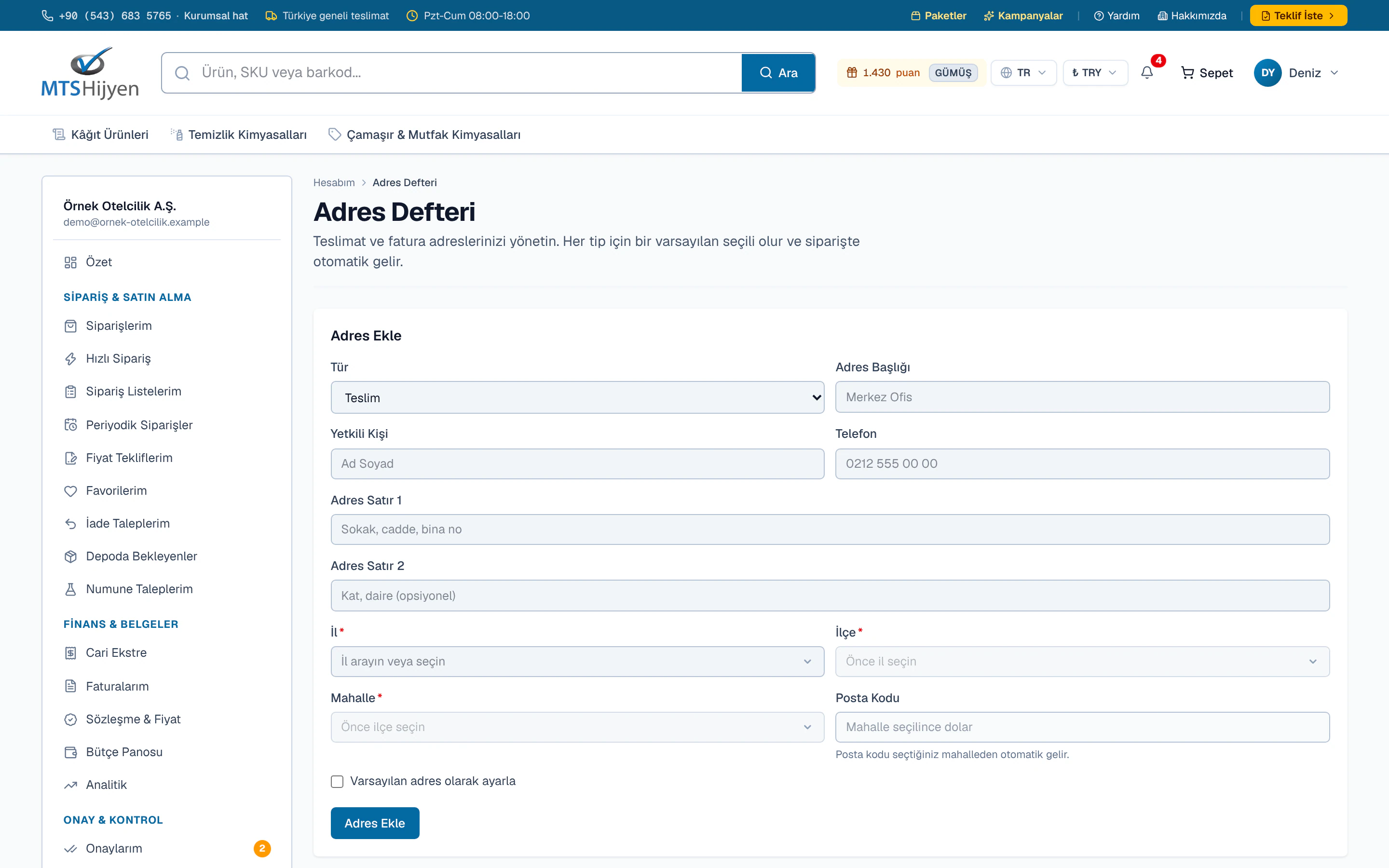
    Screenshot of the address book page
  2. 5

    Manage your profile in Settings

    On the Settings page, update your profile details, password and notification preferences.

  3. 6

    Follow your notifications

    The Notifications page shows your order, approval and payment notifications. Use Mark all as read to clear unread ones in one go.

Try it now

This link takes you to the page. If you are not signed in, the sign-in page opens first.

All chaptersNext chapterFinding products