MTS Hijyen

B2B shopping platform for corporate cleaning and hygiene solutions.

Categories

  • Paper Products
  • Cleaning Chemicals
  • Kitchen, Dishwashing & Food Service
  • Dispensers
  • Cleaning Equipment
  • Personal Care & Protective Equipment
  • Waste Management & Ambient Care

Brands

  • Wanda Soft
  • Efor
  • Selpak
  • Belinno
  • Beybi
  • Bingo
  • Ceymop

Company

  • About Us
  • Product Groups
  • Bundles
  • Deals
  • Blog
  • Contact

Help

  • Help Center
  • Portal Guide
  • Request a Quote
  • Request Sample
  • Returns

Legal

  • Privacy Notice
  • Privacy Policy
  • Cookie Policy
  • Distance Sales Agreement
© 2026 MTS Hijyen. All rights reserved.
+90 (543) 683 5765·Corporate lineNationwide deliveryMon-Fri 08:00-18:00
BundlesDeals|HelpAbout Us|Request a quote
MTS Hijyen
Sign InSign Up
Loading...
Choose a chapter:4. Recurring orders
  1. 1Setting up your account
  2. 2Finding products
  3. 3Placing an order
  4. 4Recurring orders
  5. 5Quotes and samples
  6. 6Approvals and budget
  7. 7Payment and finance
  8. 8After the order
  9. 9Team management
  10. 10Benefits
  11. 11Dealer managementFor dealers
  1. 1Setting up your account
  2. 2Finding products
  3. 3Placing an order
  4. 4Recurring orders
  5. 5Quotes and samples
  6. 6Approvals and budget
  7. 7Payment and finance
  8. 8After the order
  9. 9Team management
  10. 10Benefits
  11. 11Dealer managementFor dealers
Chapter 4 / 11
HomeGuideRecurring orders

Recurring orders

Set up orders that repeat automatically for the products you buy regularly.

What it is for: You no longer need to search for the same products every month.

Steps

Recurring Orders page
  1. 1

    Manage your templates

    The list shows each template's frequency and next order date. Manage a template with Pause, Resume, Edit and Cancel.
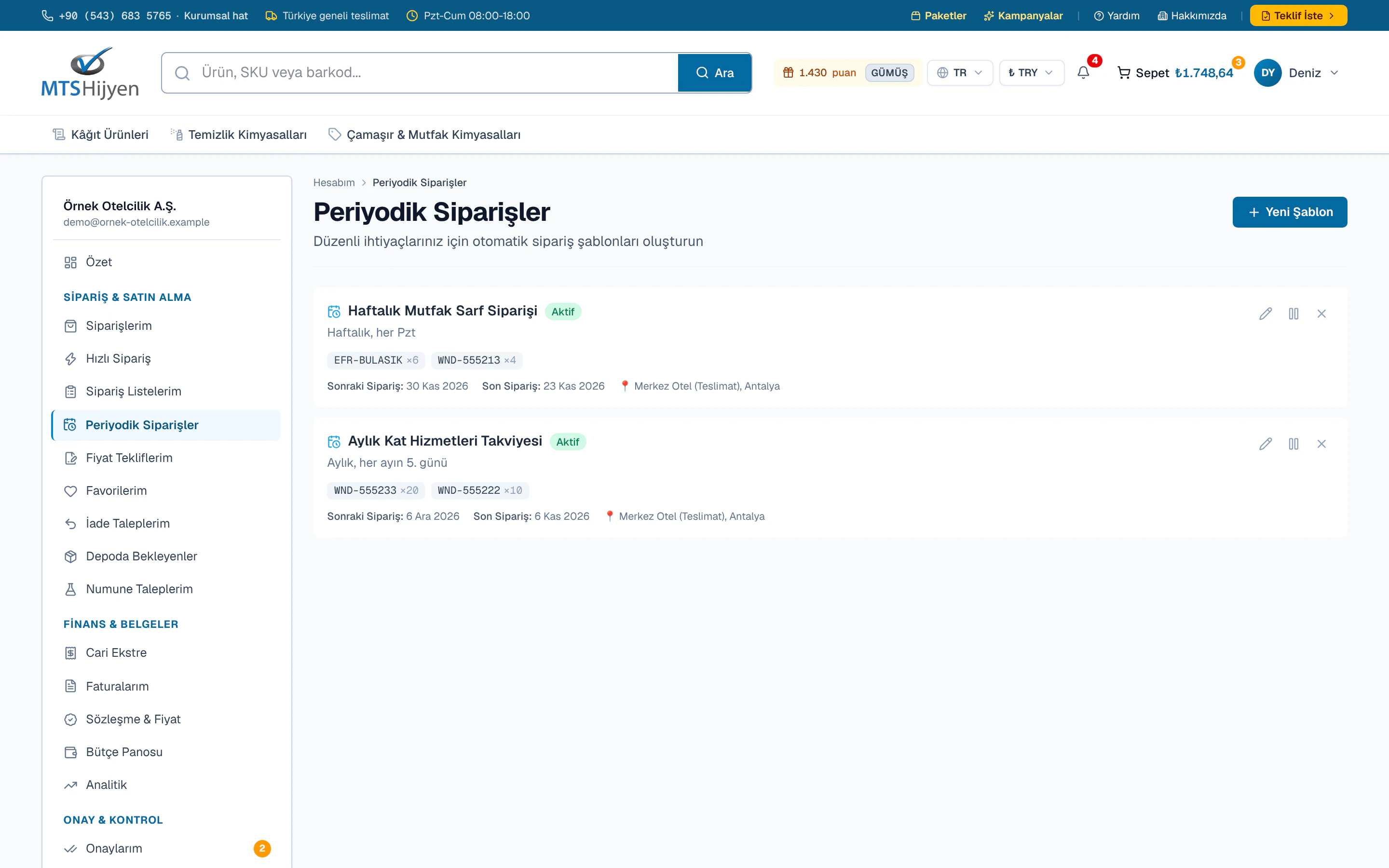
    Screenshot of the Recurring Orders page
  2. 2

    Review the suggestions

    If we notice products you buy regularly, a suggestion card appears at the top of the page. Set up regular delivery fills in the form for you, and you can check it before saving.

  3. 3

    Create a new template

    On the Recurring Orders page, click New Template.

    Screenshot of the Recurring Orders page
New template form
  1. 4

    Fill in the template

    Enter a template name, add products with product code and quantity, and choose the delivery address and payment method.
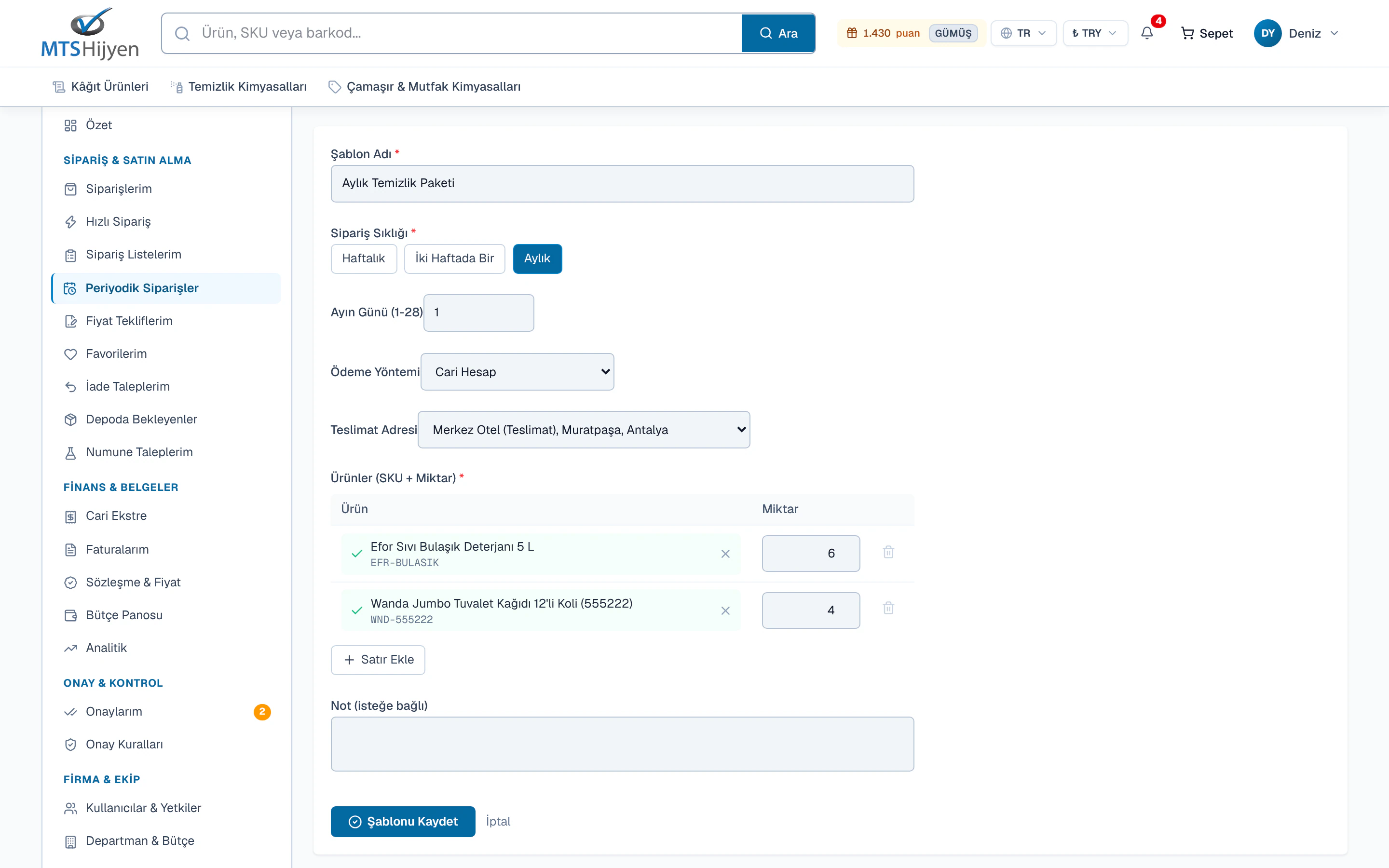
    Screenshot of the new recurring order template form
  2. 5

    Set the frequency

    Choose Weekly, Every Two Weeks or Monthly as the frequency. Set the order day and click Save Template.

Try it now

This link takes you to the page. If you are not signed in, the sign-in page opens first.

Previous chapterPlacing an orderNext chapterQuotes and samples